 Software Keys HQ
How to Find Your Windows Product Key (5 Ways, 2026)
Find a Windows 10 or 11 product key in firmware, packaging, email or your Microsoft account, and learn when a digital license means no key exists.
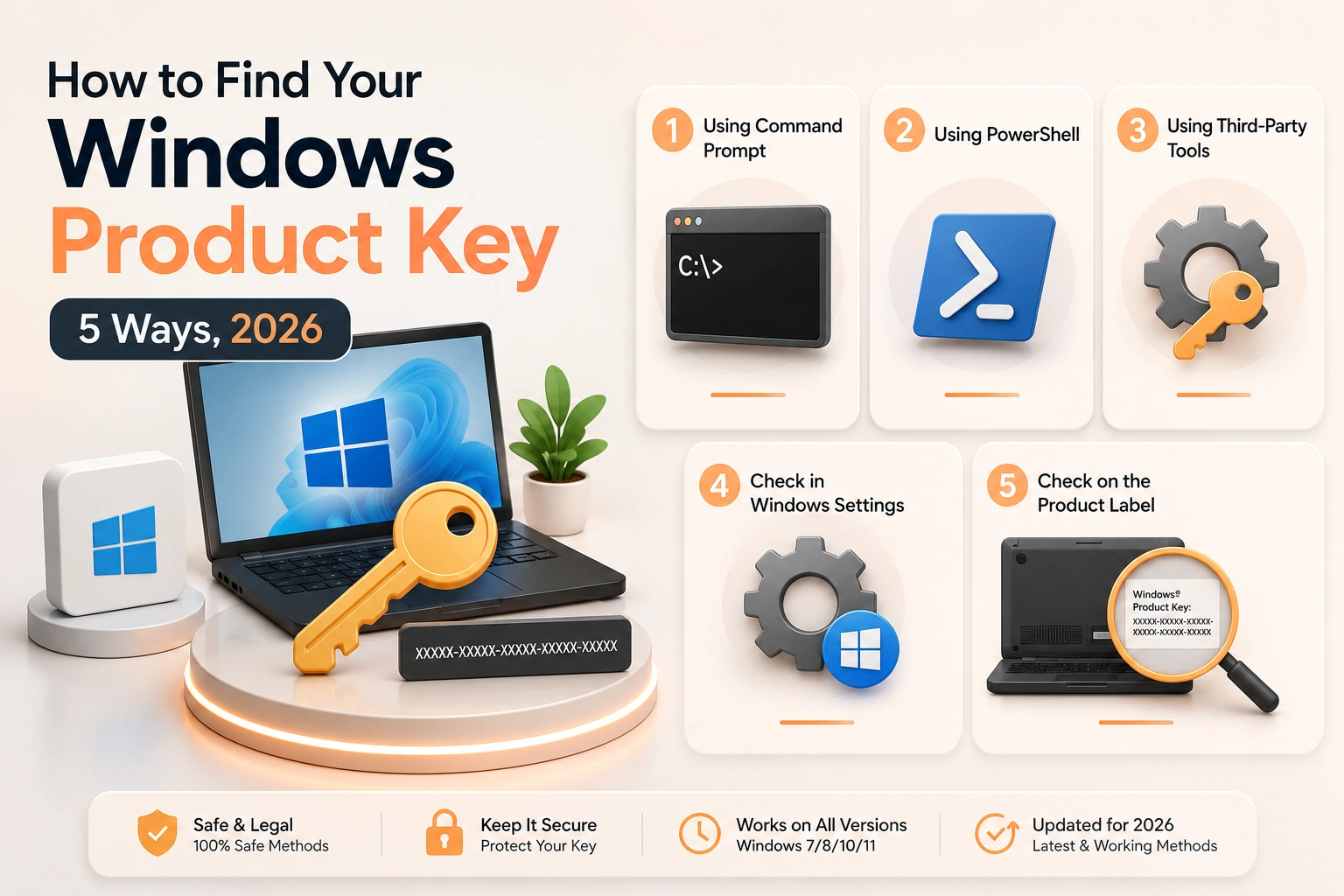
Use these five safe checks to find a Windows key—or confirm that your PC activates with a digital license and has no reusable key to reveal.
Before buying a new key, it's worth checking whether you already have one — a valid Windows license is often findable in a few minutes. Here is where to actually look.
1. Check Settings on the PC itself
Go to Settings → System → Activation. If Windows shows "Windows is activated with a digital license," your key is tied to your Microsoft account or hardware — you don't need the 25-character code at all, it will reactivate automatically after a clean reinstall on the same PC.
2. Check your Microsoft account
Sign in at account.microsoft.com and check Services & subscriptions — if you bought Windows directly from Microsoft, the license may be listed there.
3. Check the sticker on your device
Older PCs (especially pre-built desktops and some laptops) shipped with a physical Certificate of Authenticity sticker printed with the product key, usually on the case or underside.
4. Search your email
Search your inbox for "product key," "Windows," or the retailer/reseller you bought from — a valid key is normally delivered by email and stays in your inbox indefinitely.
5. Use a key-finder command (advanced)
Windows can report the key embedded in its own BIOS/firmware (common on OEM PCs) using a PowerShell command — search "wmic get OA3xOriginalProductKey" for the exact syntax. This only works for OEM keys baked into the hardware.
Still can't find it?
If none of the above turns anything up, the license may never have existed as a separate key (some PCs activate purely through a digital entitlement tied to your Microsoft account and hardware, with no discoverable code at all) — or it's simply time for a new one.
First: a product key and a digital license are different
Windows 10 and Windows 11 can activate with either a 25-character product key or a digital license. A digital license is an activation entitlement held by Microsoft's servers and matched to the device. It does not require a key, and there may be no recoverable key to display.
That is why key-finder tools sometimes show a generic value or nothing useful on a perfectly activated computer. The machine may be using a digital license from a Microsoft Store upgrade, a previous eligible upgrade, or an entitlement linked to its hardware and Microsoft account.
Before searching, open Settings, System, Activation. If the page says Windows is activated with a digital license, record the edition and link it to your Microsoft account where the option is offered. For a reinstall of the same edition on the same hardware, you can normally choose "I don't have a product key" during setup and Windows will reactivate after going online.
Microsoft's current explanation is available in Find your Windows product key.
Method 1: check UEFI firmware safely
Many PCs sold with Windows have an OEM key embedded in UEFI firmware. Open PowerShell as an administrator and run:
wmic path softwarelicensingservice get OA3xOriginalProductKey
On newer systems where WMIC is unavailable, use PowerShell's licensing service query instead. If the command returns a 25-character key, save it privately. If it returns a blank line, that does not prove the installation is unlicensed; it only means there is no readable OA3 firmware key.
An embedded OEM key normally belongs to that original device. Finding it does not convert it into a portable retail license, and it should not be posted in a screenshot or support forum.
Method 2: check the physical purchase record
For a boxed retail copy, look inside the packaging for a card or label. For a prebuilt PC, check the chassis and the documentation supplied by the manufacturer. Older systems may have a Certificate of Authenticity label; modern systems more often store the entitlement in firmware.
Photographing the label for your records is sensible, but keep the image private. Treat a product key like a password: anyone who obtains it can attempt activation and consume the allowed use.
Method 3: search the correct email and account
Search purchase email for the retailer name, "Windows," "product key," "digital download" and the order number. A legitimate digital order may place the key in the email, behind a secure order link, or in the retailer's account page.
If the upgrade was bought through the Microsoft Store app, Microsoft says the purchase may create a digital license rather than send a product key. Check the order history for the Microsoft account used at purchase. The order proves what was bought even when there is no 25-character code to extract.
Method 4: identify the installed license channel
Open Command Prompt as administrator and run:
slmgr /dli
This reports the installed edition, a partial key and the license channel. RETAIL, OEM and VOLUME describe different entitlement paths. The partial key is useful for matching records, but it is deliberately not enough to reconstruct the full key.
Then run:
slmgr /xpr
This confirms whether activation is permanent or has an expiry. An organization's KMS activation may expire unless the device reconnects to its activation service. Do not mistake a KMS client setup key or a generic installation key for a transferable retail purchase.
Method 5: use a key-finder only with realistic expectations
Reputable inventory tools can read license information stored locally, but they cannot turn a server-side digital license into a retail key. They may display the firmware OEM key, the currently installed key, a generic edition key, or only the last five characters. Compare the result with Settings and slmgr instead of trusting a single label.
Avoid unknown download sites promising to "recover any Windows key." A tool that asks you to disable antivirus, install a browser extension or run a patch is creating more risk than the lost key is worth. Built-in commands and purchase records should come first.
What to do before reinstalling
- Record the exact edition: Home, Pro, Enterprise or another variant.
- Confirm Activation says activated.
- Link a retail digital license to the correct Microsoft account where supported.
- Save the purchase receipt and any real key in a password manager.
- Create official installation media for the same edition.
- Back up files and encryption recovery keys separately.
Edition matching matters. A valid Windows 11 Home entitlement will not activate a Pro installation. Installing the right edition often solves what looks like a bad-key problem.
After a motherboard or device change
A major hardware change can break the device match used by a digital license. Run Settings, System, Activation, Troubleshoot and choose the hardware-change option, then sign in with the linked Microsoft account. Retail licenses are generally more portable than OEM entitlements, but the actual license terms and activation history control the outcome.
If you actually need a new entitlement, compare the correct edition under Windows & OS keys. Buying the right edition is safer than trying random keys recovered from an old image.
Why a displayed key may still be unusable
A tool can reveal a syntactically valid key that is generic, blocked, assigned to an organization, tied to another device or for a different edition. Recovery tells you what text was stored; it does not independently prove transfer rights or activation eligibility.
The reliable evidence is the combination of purchase source, license channel, edition, activation state and applicable terms. Save those together, and a future reinstall becomes straightforward rather than a search for a mystery code. Record the date of the check as well, so a later hardware change can be separated from the machine's earlier activation history.
Related guides
- How to Activate Windows Server 2022 with a Product Key (Step by Step)
- Windows Server: Standard vs Datacenter vs Essentials
- How to Get Windows 11 Pro Cheap (Without Getting Scammed)
Shop software keys — Windows, Microsoft Office, antivirus and business licenses, delivered fast.