 Software Keys HQ
How to Upgrade Windows 11 Home to Pro (Step by Step, 2026)
How to upgrade Windows 11 Home to Pro with a product key in minutes, no reinstall and no lost files, step by step.
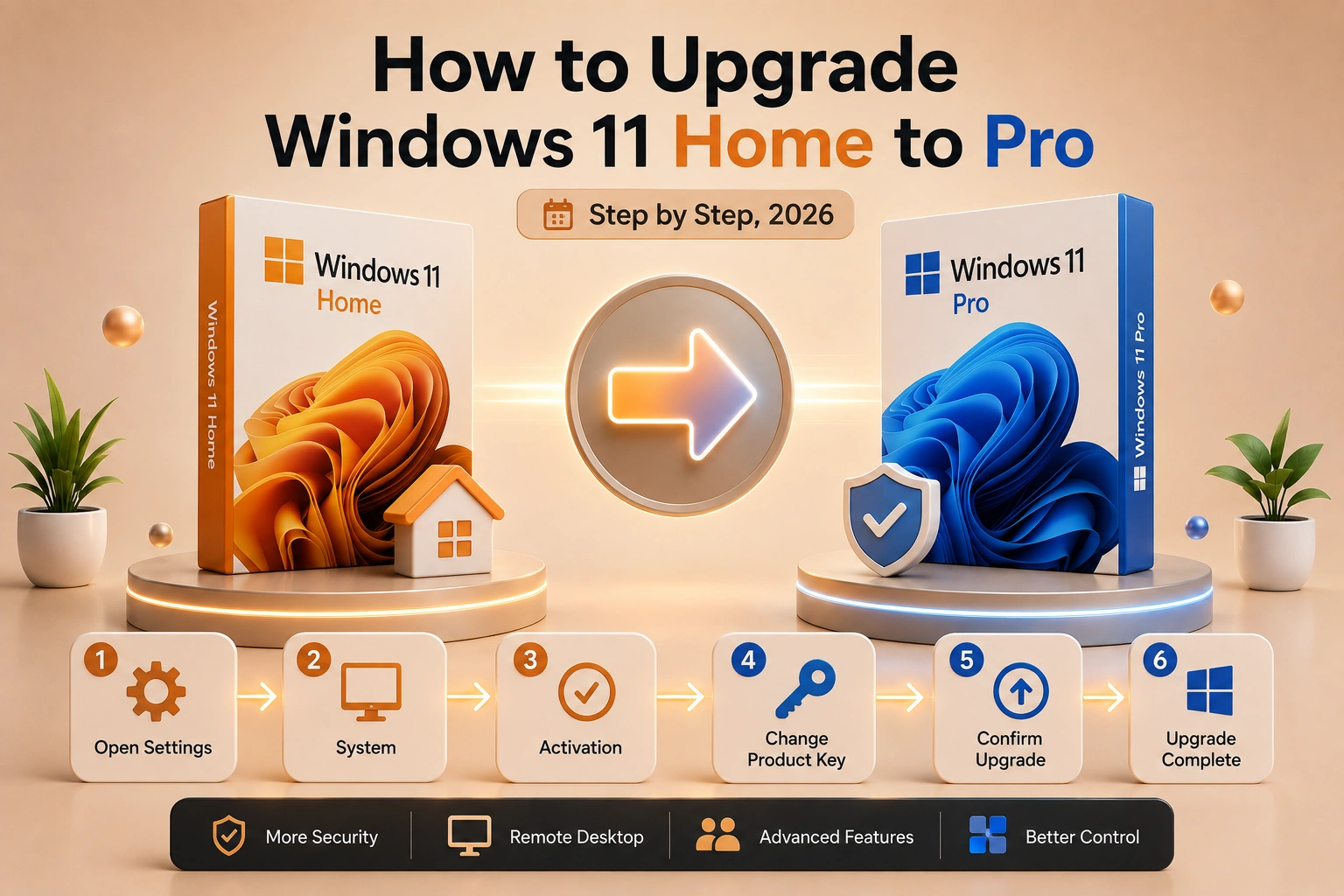
Want BitLocker, Remote Desktop or Hyper-V? Here is how to upgrade Windows 11 Home to Pro in minutes with a product key — no reinstall, no lost files.
Need BitLocker, Remote Desktop, Hyper-V or Group Policy? Those are Pro-only features. The good news: you do not need to reinstall Windows — you can upgrade Windows 11 Home to Pro in about two minutes, right from Settings, using a Pro product key. Here is exactly how.
For the current options behind this topic, compare Windows & OS by edition, term and device count.
What you unlock by upgrading to Windows 11 Pro
Everything in Home stays exactly the same — you simply switch on the Pro features:
- BitLocker drive encryption
- Remote Desktop (host your PC remotely)
- Hyper-V virtualization
- Group Policy and domain join
- Support for more RAM and CPUs
Your files, apps and settings are untouched — this is an in-place edition change, not a fresh install.
Before you start
- You need a verified Windows 11 Pro product key. A Home key will not work here — it must be a Pro key.
- Make sure you are connected to the internet so Windows can verify the key with Microsoft.
- Backing up important files first is always good practice, even though the upgrade keeps your data.
How to upgrade Windows 11 Home to Pro (step by step)
1. Open Settings → System → Activation. 2. Under "Upgrade your edition of Windows", click Change product key. 3. Enter your 25-character Windows 11 Pro key and click Next. 4. Click Start (or Change). Windows verifies the key and upgrades the edition in place. 5. Your PC may restart. When it finishes, you are on Windows 11 Pro — same files, same apps, new features.
That is it — no clean install, no lost data.
How to change Windows 11 Home to Pro if the key will not apply
If the key is rejected, work through these:
- Double-check it is a Pro key (not Home), copied with no extra spaces.
- Make sure you are online so Windows can activate the new edition.
- If online activation is busy, choose the phone activation option Windows offers.
- Restart and try again — a new key sometimes needs a moment to register on Microsoft's side.
Is it worth upgrading Home to Pro?
If you want drive encryption, remote access, virtual machines, or you use the PC for work, then yes — Pro pays for itself the first time you need BitLocker or Remote Desktop. If you only browse, game and use Office, Home is perfectly fine.
Get a verified Windows 11 Pro upgrade key
At Software Keys HQ, a verified Windows 11 Pro key is delivered to your inbox in seconds. It activates directly with Microsoft, keeps every file in place, and unlocks all the Pro features for a fraction of the retail price — backed by our free replacement warranty. Enter it in the Activation screen above and you are on Pro in minutes.
Related guides
- How to Activate Windows Server 2022 with a Product Key (Step by Step)
- Windows Server: Standard vs Datacenter vs Essentials
- How to Find Your Windows Product Key (5 Ways, 2026)
Shop software keys — Windows, Microsoft Office, antivirus and business licenses, delivered fast.